
Overview
Big Up is a transient-aware multiband dynamics effect that makes quiet details, body, room, and sustain feel larger while helping important attacks remain intact.
This guide follows the plugin from top to bottom. Start with a preset, read the processing display, shape the sound with the six main controls, then finish with Auto Gain, Motion, and Size.
01InstallationInstall the plugin and make it available in your DAW.
- Download the Big Up installer from your account downloads section.
- Quit your DAW before installing.
- Run the installer and follow the prompts for your operating system.
- Reopen your DAW and rescan plugins if Big Up does not appear automatically.
- Insert Big Up on an audio, instrument, bus, or effects track.
02ActivationConnect the plugin to the license in your account.
A valid Big Up license is required for activation.
- Open Big Up in your DAW.
- Enter the license information shown in your Biggie Boy Audio account.
- Complete activation while connected to the internet.
- Reload the plugin if your host asks you to do so.
If activation fails, confirm that you are using the verified account that claimed Big Up and that the license information was entered exactly as displayed.
03Quick StartGet a useful result in a few moves.
- Load Big Up on a track.
- Choose a factory preset from the preset bar.
- Turn
Bigto set the overall processing intensity. - Raise
Punchif you want more of the original attack. - Raise
Bloomfor more body, room, and sustain. - Use
Tone,Mix, andOutputto finish the sound. - Enable
Auto Gainfor an easier level-matched comparison.
For subtle enhancement, keep Big below 30%, leave Size on Normal, and lower Mix. For a more dramatic result, try Extra Medium or Huge, raise Bloom, and experiment with Loose Motion.
04PresetsBrowse factory sounds and manage your own starting points.
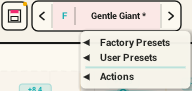
The preset bar at the top lets you move through sounds quickly.
- The left and right arrows step through presets.
- The preset name opens factory presets, user presets, and preset actions.
F,U, andCidentify Factory, User, and Custom states.- An asterisk means the current settings have changed.
- The save control updates an active user preset or creates a new one.
Factory presets include subtle starting points such as Gentle Giant and Mastering Nudge, focused choices such as Vocal Lift and Drum Chest, and extreme options such as Huge Mistake and Absolute Unit.
User Presets
From the preset menu you can:
- Save or update a user preset.
- Import or export a
.bupresetfile. - Reveal the user preset folder.
- Delete one or all user presets.
05Processing DisplayRead the gain movement, protection, and band topology.
The processing display shows the gain Big Up is applying across the spectrum.
- The center line represents 0 dB of applied gain.
- Teal movement above the line shows positive gain.
- Pink movement below the line shows gain reduction.
- Softer trails show recent processing history.
AUTOshows the current Auto Gain correction.SAFEappears when output protection is reducing an extreme peak.
The graph shows processing gain, not the input signal spectrum.
Bands
Use the 3 / 5 selector in the upper-left corner of the display to change the processing topology.
3 Band: broad Low, Mid, and High processing for a cohesive result.5 Band: Low, Low-Mid, Mid, Presence, and Air processing for finer spectral movement.
The selector changes the sound as well as the display, so compare levels after switching.
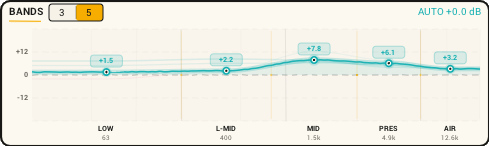
Gain movement, Auto Gain correction, Safe protection, and the band selector.
06Main ControlsShape intensity, attack, sustain, tone, blend, and level.
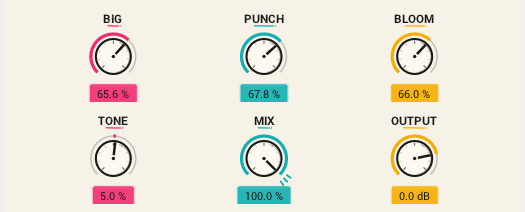
Big
Controls the overall depth and intensity of the multiband dynamics.
- Low settings add subtle detail and density.
- High settings create stronger upward and downward compression.
Punch
Controls how strongly Big Up protects important transients.
- Lower settings sound flatter and denser.
- Higher settings preserve more initial attack.
Bloom
Emphasizes sustain, decay, ambience, and tails.
- Lower settings feel tighter and faster.
- Higher settings reveal more room and body.
Tone
Changes which frequency areas receive the strongest processing.
- Negative values favor darker low and mid body.
- Positive values emphasize air and articulation.
Mix
Blends the original and processed signals. Lower settings are useful for parallel enhancement on drums, vocals, and full mixes.
Output
Controls the final level after processing and dry/wet blending. Use it to match Big Up against the bypassed signal.
Big is not a wet/dry control. Punch and Bloom can still create an audible result when Big is at 0%.
07Utility ControlsMatch level, change timing, and select processing authority.
Auto Gain
Applies a slow, conservative correction based on the difference between input and processed level. Let the source play for several seconds before judging the match.
Motion
Changes how quickly the dynamics respond and recover.
- Tight: fast and rhythmically precise.
- Natural: balanced for general use.
- Loose: flowing for ambience and sustain.
Size
Changes the authority and upper range of the processing.
- Normal: controlled everyday processing.
- Extra Medium: stronger density and sustain.
- Huge: the most extreme behavior.
Reduce Output before selecting Huge at aggressive settings. If SAFE remains visible, lower Big, Size, Mix, or Output.
